Creating subscriptions in App Store Connect
Create the products users will purchase. PurchaseKit uses these product IDs to match purchases to your app.
Create a subscription group
Subscription groups let users upgrade or downgrade between plans without being charged twice.
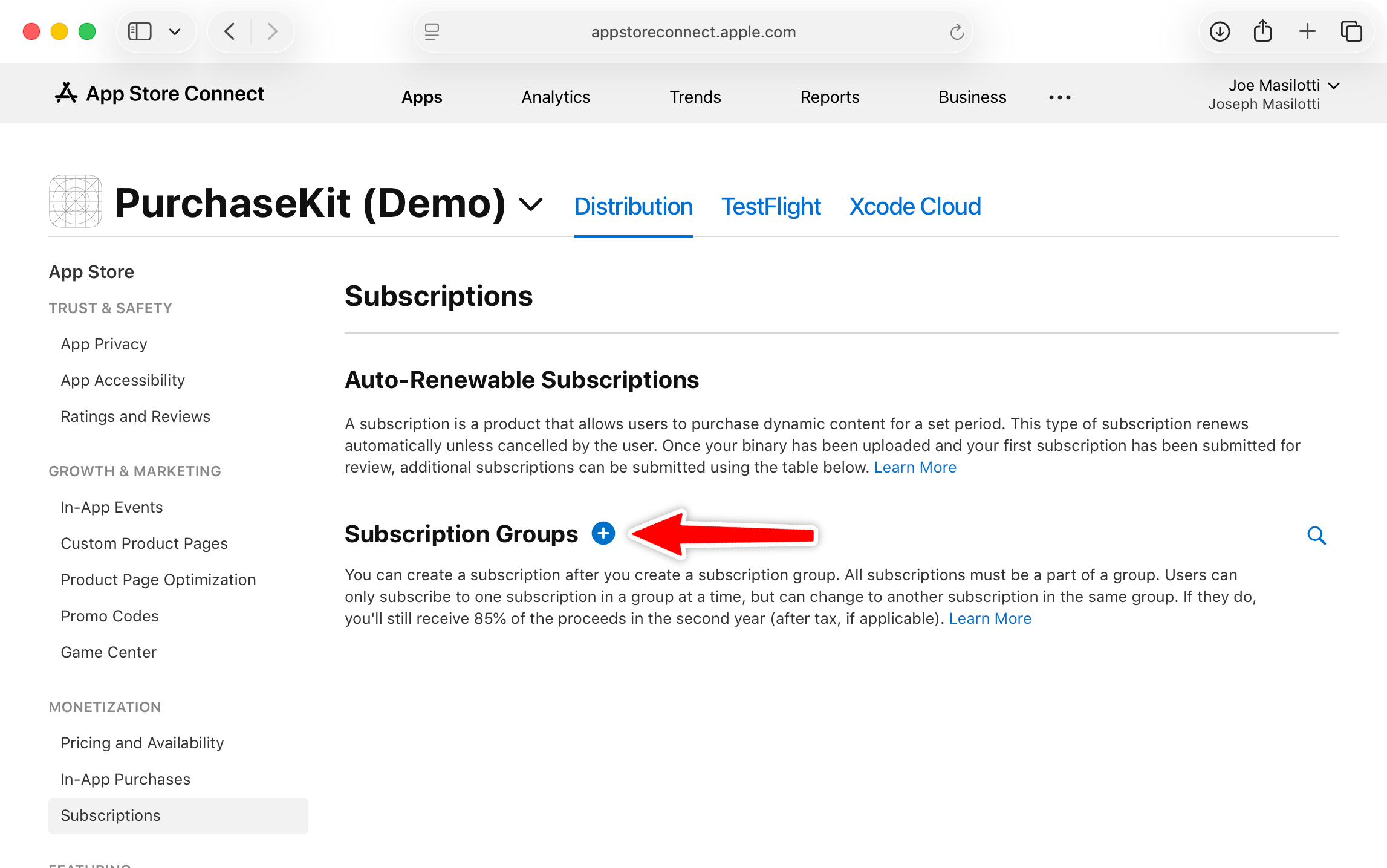
- In App Store Connect, go to your app
- Select Subscriptions in the sidebar
- Click the + button next to Subscription Groups
- Enter a reference name (e.g., "Pro Plans")
Add a subscription
- Within your subscription group, click Create next to Subscriptions
- Enter a Reference Name (internal only, e.g., "Pro Annual")
- Enter a Product ID - this is what you'll use in PurchaseKit:
- Use reverse domain notation:
com.yourapp.pro.annual - Be consistent:
com.yourapp.pro.monthly,com.yourapp.pro.annual
- Use reverse domain notation:
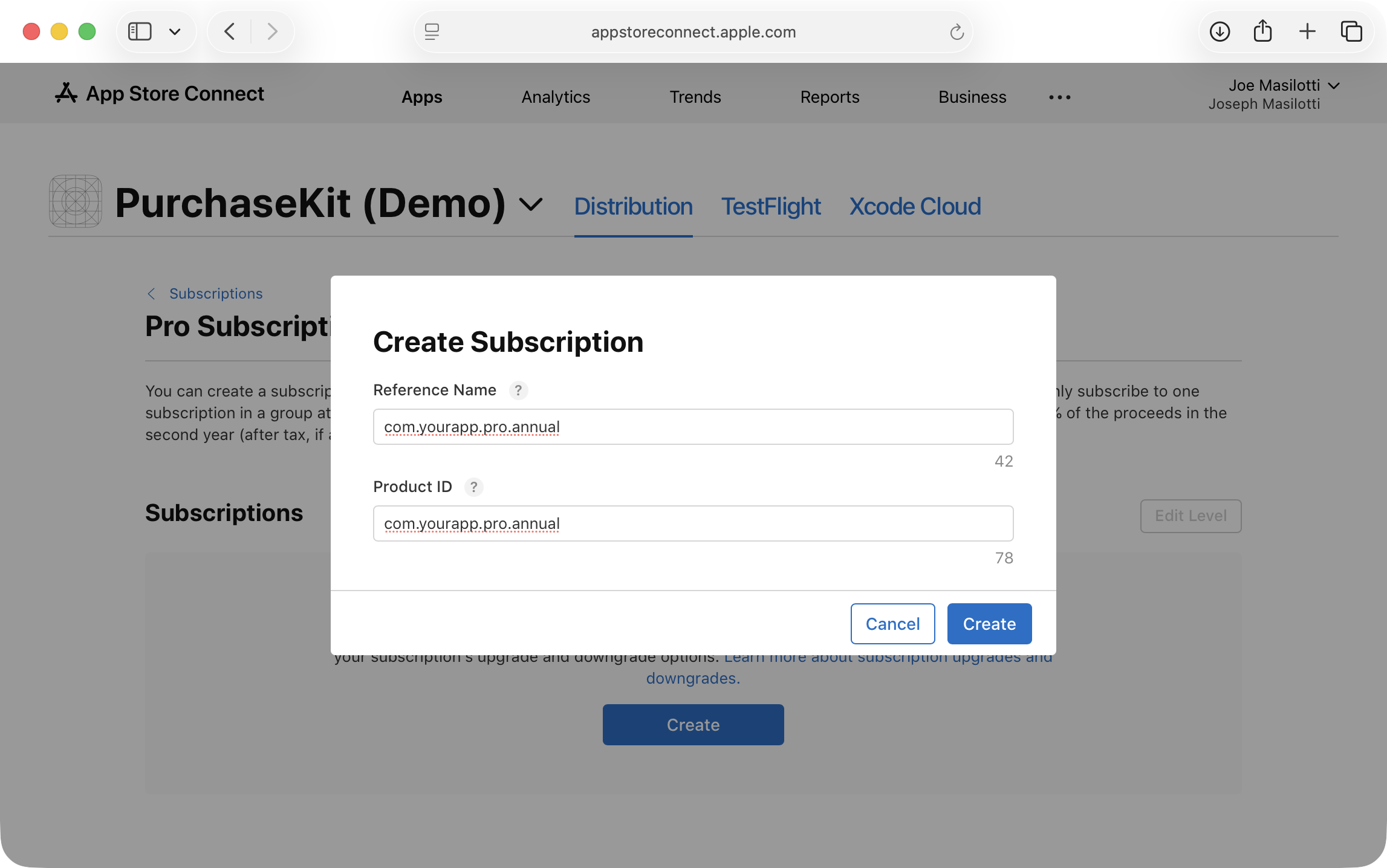
- Click Create
- Configure subscription details:
- Subscription Duration (1 week, 1 month, 1 year, etc.)
- Availability → select which countries can purchase
- Subscription Prices → click Add Subscription Price
Add the product to PurchaseKit
- In the PurchaseKit dashboard, go to your app
- Click Add a product
- Enter the Apple Product ID (e.g.,
com.yourapp.pro.annual) - Save the product
The product ID in PurchaseKit must exactly match the Product ID in App Store Connect.
Next step
Configure App Store Connect to send webhooks to PurchaseKit.